01Enter your route and departure
Choose your starting point, destination and departure time. Add the stops you plan to make, including overnight stops on longer trips. This gives the forecast a journey and a schedule to follow.
For a longer itinerary, see our road trip weather planner guide.
 02
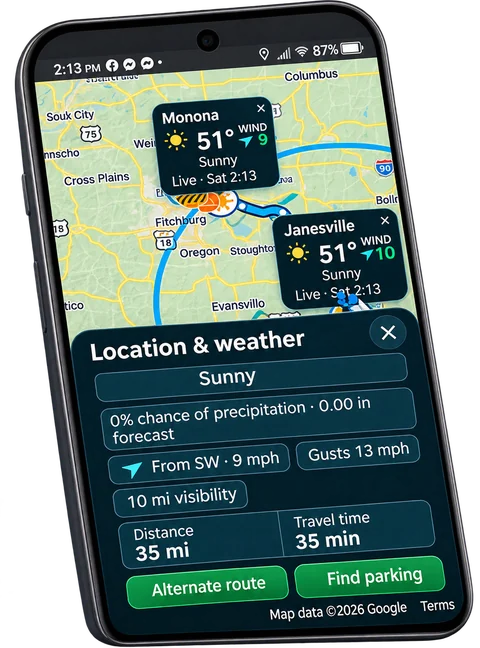
Read weather at arrival time
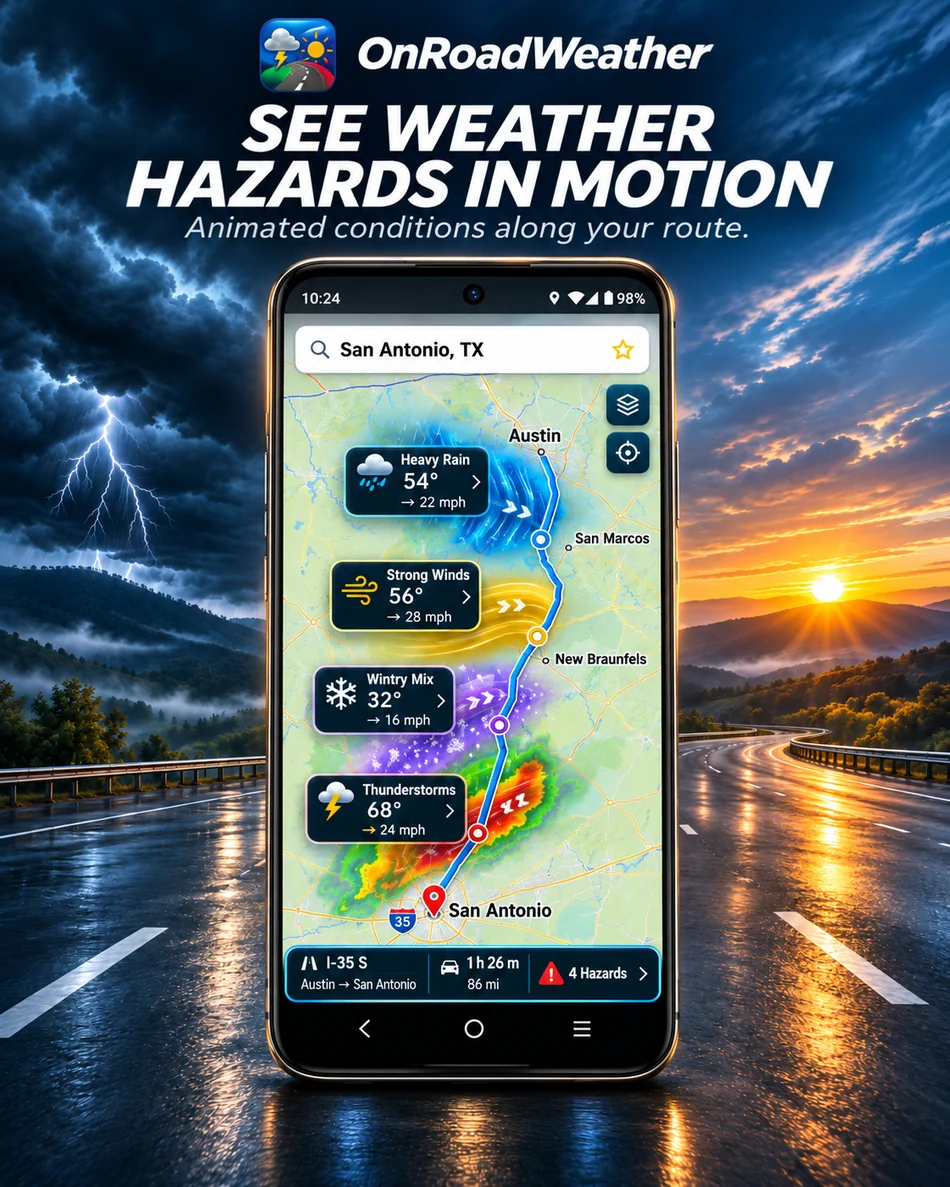
Review the conditions forecast for when you expect to reach each checkpoint. Look along the whole journey for changing rain, snow, wind, temperature and visibility, together with relevant severe weather alerts.
The Trip & Weather Timeline helps organize the journey into checkpoints.
 03
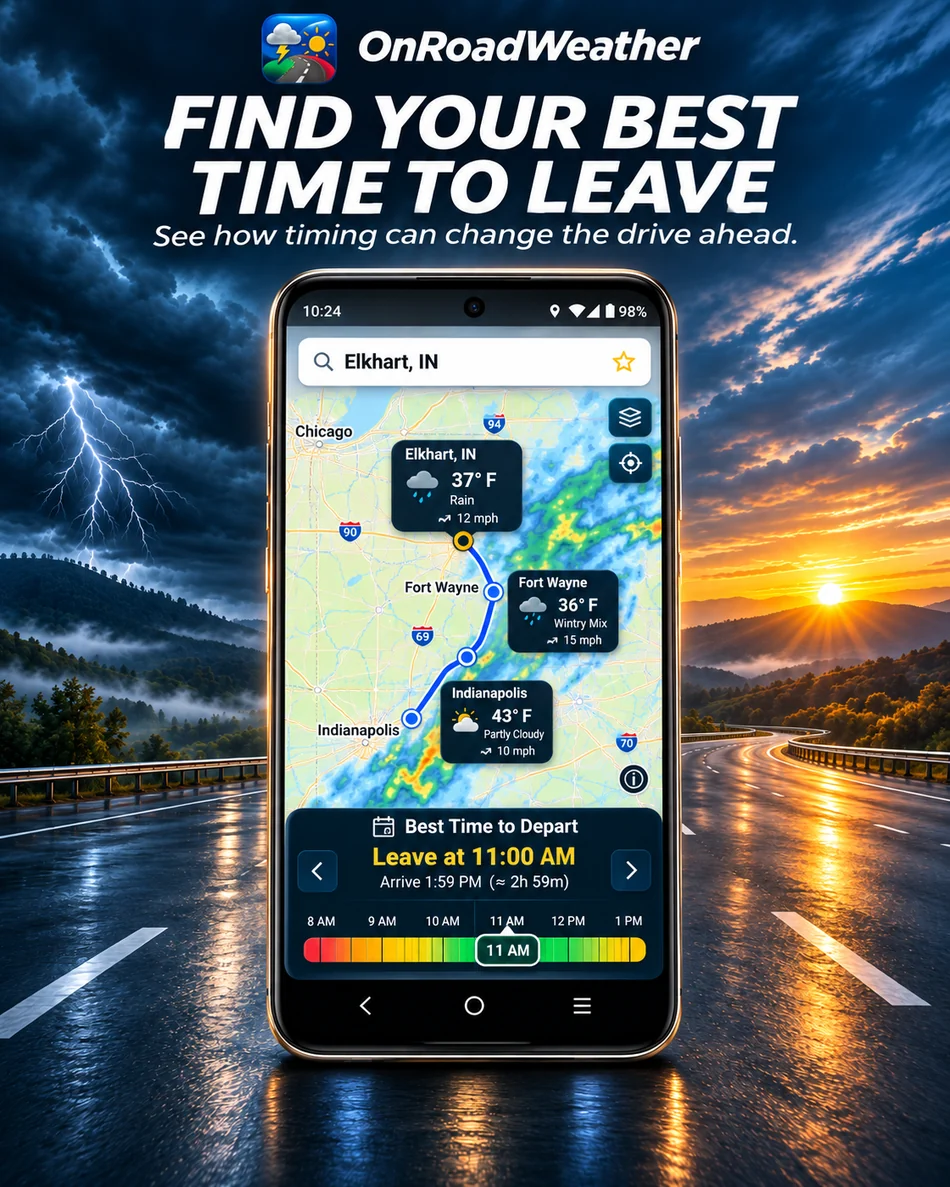
Review and recheck your trip
Compare a different departure time or available route options when the forecast raises concerns. Check available road reports and camera snapshots, then review the trip again before leaving and at safe stops if your schedule changes.
Use the road conditions guide to interpret those reports.
What “weather on my route” means
A driving weather forecast connects a location with your expected arrival time. If you leave in the morning but reach a checkpoint around noon, the forecast for noon is the relevant one for that part of the trip. Checking only the current weather at your starting point or destination can miss those changes along the way.
A later departure, a longer stop or another route can change when you reach a location. Revisit the trip after adjusting your plans. For travel across several states, our highway and interstate weather guide explains how to review the route in sections.
Use each view for the question it answers
- Arrival-time forecasts: What weather is expected when you reach a checkpoint?
- Recent radar: Where has precipitation recently been detected? Read our route radar guide for the difference between radar and a forecast.
- Reported incidents: What crashes, congestion, obstructions or closures have been reported where coverage is available?
- Camera snapshots: What does an available roadside image show at its capture time? Check its timestamp when supplied.
These views provide different pieces of the picture. Coverage, update times and feature availability depend on the source, location and plan. Review the app features and plan information for more detail.
Plan before departure and review at safe stops
Forecasts and third-party reports can change or arrive late. Use the app while parked, follow official warnings and road restrictions, and leave room to adjust your plans. The app supports your travel decisions; it cannot establish that a road is safe or open.
Watch the short OnRoadWeather demonstrations to see the app before downloading it.